
Audit Trail Configuration Toolkit
Audit Trail Configuration Toolkit provides a comprehensive set of tools and resources to help developers easily configure the behavior of the Consolidation Extension for SAP Analytics Cloud. This Toolkit ensures a “No Fail” approach in a predefined and sequential configuration. The configurations applied for each member in the Audit Trail will restrict the subsequent decisions possible for that member based on embedded rules in the toolkit.
Data Source Type
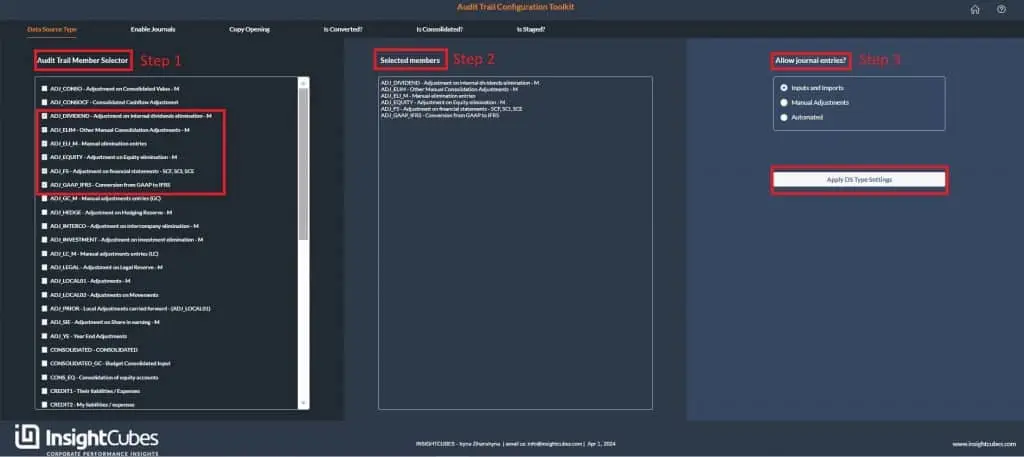
Step 1:
After clicking on the “Data Source Type” tab, users gain access to the audit trail configuration dimension, enabling them to configure the audit trail members’ data source types.
The initial selection, labeled as the “Audit Trail Member Selector” presents users with a list of current Audit Trail Members from which they can make their choices.
Step 2:
After selecting members from the Audit Trail Members list, the chosen members automatically fill the ‘Selected Members’ box.
Step 3:
Now, the user can configure the behavior of the selected Audit Trail members by assigning their Type:
- Input and Imports: Assigned for entries conducted by users or imported by the system.
- Manual Adjustments: Designated for manual adjustments with subsequent configuration to determine the medium for entry.
- Automated: Automated elimination and adjustments generated by the system.
Based on the assigned Type, the system includes the Audit Trail members in the set of preconfigured global rules. Clicking on the ‘Apply DS Type Settings’ button will assign the Type to the Audit Trail Members, with the subsequent sequence of logic associated with the Type.
Enable Journals
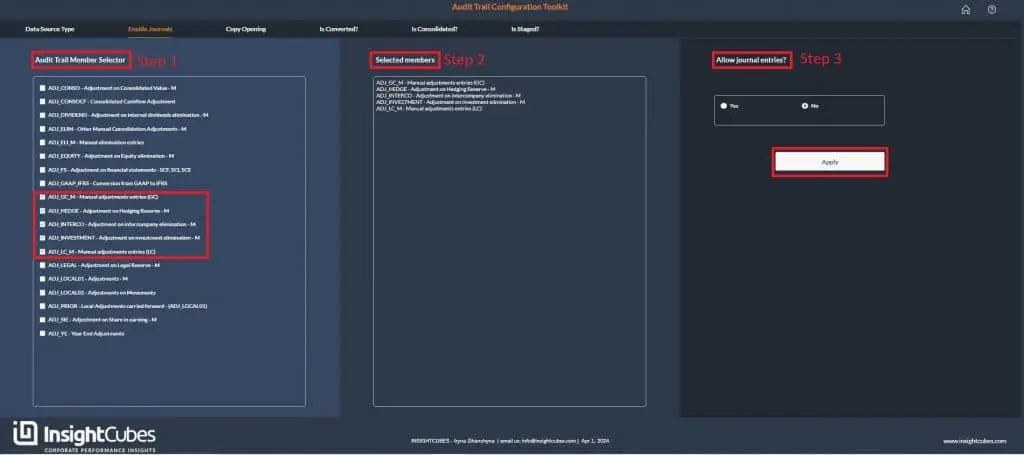
Step 1:
After clicking on the “Enable Journals” tab, users gain access to the audit trail configuration dimension. The initial selection, labeled as the “Audit Trail Member Selector” presents users with a list of current Audit Trail Members from which they can make their choices. Only Audit Trail members with the Data Source Type “Manual Adjustments” appear in the list.
Step 2:
Next, after selecting members from the Audit Trail Members list, the chosen members automatically fill the ‘Selected Members’ box.
Step 3:
Now the user can enable or disable journal entries by selecting from a radio button.
- Yes
- No
Clicking on the ‘Apply ‘ button will set the specific Audit Traill members for Manual Adjustments through Journal Interface only.
Copy Opening
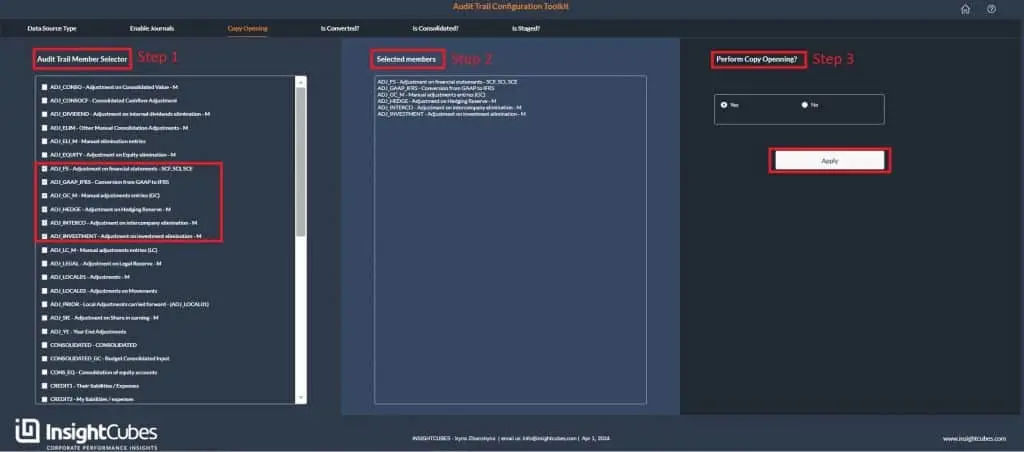
Step 1:
The “Copy Opening” tab allows users to configure which Audit Trail Members are subject to the copy opening rule. The initial selection, labeled as the “Audit Trail Member Selector” presents users with a list of current Audit Trail Members from which they can make their choices.
Step 2:
After selecting members from the Audit Trail Members list, the system automatically fills the ‘Selected Members’ box.
Step 3:
Now the user has the option to assign and remove the copy opening rules from the selected members by choosing the required option from the radio button:
- Yes
- No
Clicking on the ‘Apply ‘ button will assign the copy opening rules to the Audit Trail Members.
Is Converted?
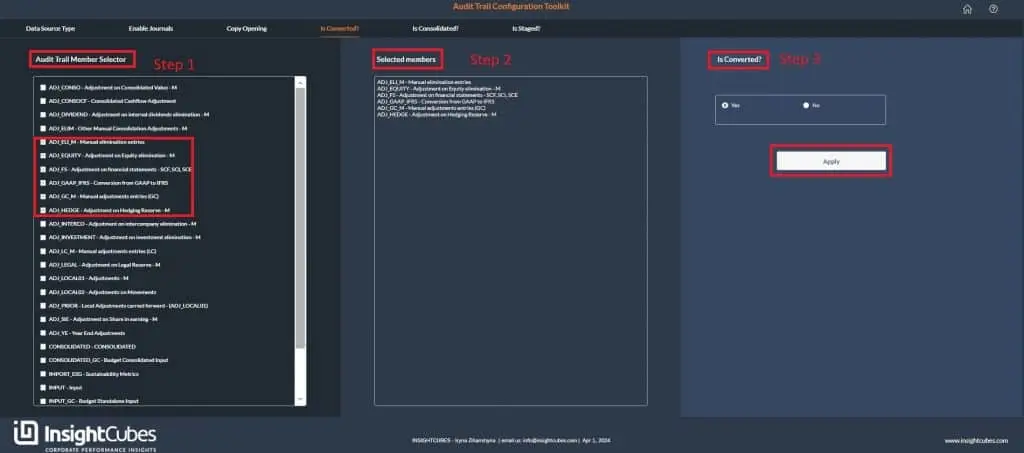
Step 1:
The “Is Converted” interface lets users include or exclude Audit Trail members from the Currency Conversion rules. Consequently, this allows users to configure whether an Audit Trail Member with Type Manual and journal Activated undergoes currency conversion, depending on whether the adjustment is in LC or GC. Together, these configurations help fine-tune the system’s behavior.
Step 2:
When the user selects from the Audit Trail Members list, the chosen members will automatically fill the ‘Selected Members’ box.
Step 3:
Now the user can activate or deactivate currency conversion by selecting option from a radio button:
- Yes
- No
Clicking on the ‘Apply ‘ button the system will include currency conversion process to the Audit Trail Members.
Is Consolidated?
Step 1:
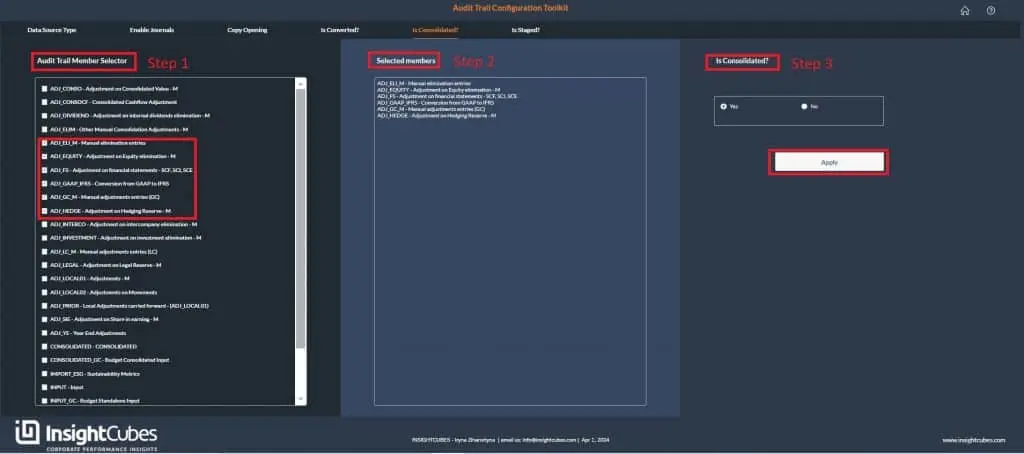
Similar to the “Is Converted” interface, the “Is Consolidated” tab lets users decide whether to include Audit Trail members in the consolidation process. Additionally, the list excludes Data Source Types with a value of Automated, since the system uses them to receive automated eliminations and adjustments. Furthermore, this setup ensures that users can manage consolidation behavior more precisely. Here, you can select which source Audit Members to include or exclude in the scoping part of the consolidation rules.
The Consolidation Rules query the values of the included members, and the system writes the automated eliminations and adjustments to the Data Source Types with Value Automated. To know more about the assignment of Audit Trail members to specific accounts, please refer to Account Configuration.
Step 2:
After that, selecting members from the Audit Trail Members list automatically fills the ‘Selected Members’ box.
Step 3:
Once the user selects members from the Audit Trail Members list, they can explicitly choose whether to include or exclude each member in the consolidation process by selecting the appropriate radio button.
- Yes
- No
When the user clicks the “Apply” button, the system applies the “is consolidated” process to the Audit Trail Members and runs the next logic sequence.