
In this brief blog, I will describe the different methods of conducting detailed currency conversion using Cloud Consolidation Extension for SAP Analytics Cloud. This is the first step before applying the ‘integration’ logic of the Consolidation process, which we will cover in later blogs.
Why Currency Conversion is Needed
Financial data reported by group companies (subsidiaries, JVs, and affiliates) is usually in their local currencies. Before performing calculations, matching, eliminations, or any other logic, convert these values from the entities’ local currencies to a reporting or group currency. The Currency Model and the Currency Conversion logic will automatically convert the financial data of all the companies from their local currencies into any set of reporting currencies and/or the group currencies of the scopes. (note: much like SAP BPC, we designate which AUDIT_TRAIL members are subject to currency conversion and which are subject to consolidation. The system excludes Audit Trail members with IS_CONVERTED = N from the currency conversion process.
Standard vs. Detailed Conversion Logic
SAP Analytics Cloud provides a standard currency conversion logic which is based on the accounts using closing and average. However, the requirements for currency conversion can be much more detailed, whereas each Balance sheet account has a set of movements/flows with a specific conversion rate, such as currency conversion rate for opening, dividend, movement, historical, currency translation adjustment, and closing.
To meet these requirements, you need:
- a separate Rate Model
- a comprehensive method for performing currency conversion.
For a scalable and flexible solution, design the model’s architecture and use advanced formulas and APIs. The currency conversion solution, that is part of the cloud consolidation solution, allows any end users to easily add new currencies and have different rates for the same currency, assign these rates to specific Flow members and run the currency conversion without any additional line of coding.
How Currency Conversion Works
Basic example:
The balance sheet accounts’ movements/flows need to be converted from the local currency of the entities to a set of currencies with varying rates based on each movement/flow. Consider that the rates mentioned below are the conversion rates between EUR and USD, and that the Local Currency of the company is USD and the Reporting currency we want to convert the values to is EUR.
| Opening (Closing PYE) | 1.1 |
| Incoming | 1.2 |
| Average | 1.3 |
| Closing | 1.4 |
| Account | Flow | Rate | Local Currency | Reporting Currency |
|---|---|---|---|---|
| Inventory | Opening | Opening | 100 | 110 |
| Additions | Incoming | 20 | 24 | |
| Disposal | Average | -15 | -19.5 | |
| Transfers from related parties | Average | -20 | -26 | |
| Closing | Closing | 85 | 119 | |
| CTA = 100*(1.4-1.1) + 20*(1.4-1.2) -35*(1.4-1.3) | 30.5 |
The currency translation logic reads all values in local currency (currency = LC), applies the desired exchange rate according to the applicable rate model, and writes the results in the appropriate reporting currency (USD, EUR, SAR, AED, QAR, and so on). Unlike the default rate conversion of SAP Analytic Cloud that runs on the accounts, this extension allows conversion of each movement within the account in as many rates/currencies as required, along with the calculation of the currency translation adjustment (CTA), for each account.
Entering Rates in the SAP Analytics Application
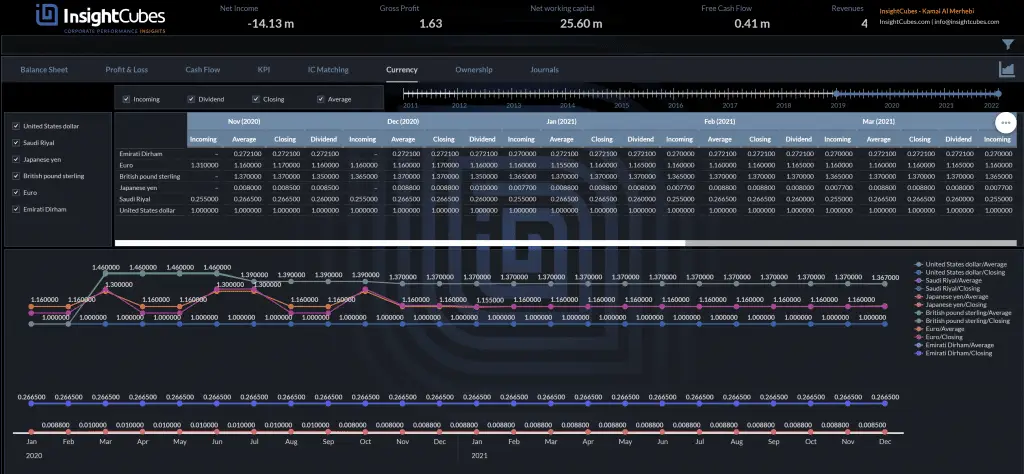
In the SAP Analytics application above, users can enter conversion rates for each currency, either as entity-specific rates or global rates (discussed later in this blog). Adding any new currency is easy and doesn’t require any programing or technical knowledge. The same applies to adding a new Rate (Incoming, Dividend, Closing, Average). After adding new currencies, rates, accounts, flows, or entities, the solution requires no coding.
Example: Converting Account Flows Using Global Rates

In the example report, the company’s local currency is EUR, and the reporting currency is USD. The system uploads the amounts to the Consolidation Model in local currency and converts each account flow to USD using the assigned rates.
Account Details
This account has several flows, each with its own rate (shown in yellow). The report links to the Rate Model, which handles the currency conversion. The entity’s local currency is EUR, and the opening rates use last year’s closing rate (1.17).
After triggering the Run currency conversion (Global Rates) Data Action Trigger, the system will convert the amounts from the local currency of the company (EUR) to the multiple reporting currencies that we have selected. For purpose of simplicity, we only showed EUR, LC and USD in the report.
- The opening balance for this account is 5,230.73 EUR. Converting to EUR gives the same value, as the system multiplies by 1. When converting to USD, the system calculates 6,119.95 USD (5,230.73 × 1.17).
- Incoming units converted from 1,000 EUR to 1,155.00 USD using a rate of 1.155
- Dividends converted from 750.00 EUR to 872.25 USD at a rate of 1.163
- Average values converted from 5,662.23 EUR to 6,531.26 USD at a rate of 1.165
- Closing balances converted from 12,586.96 EUR to 14,600.87 USD at a rate of 1.16
- CTA (currency translation adjustment) was generated with a value of -77.59
You can use historical rates in two ways. First, you can copy the value: enter the historical amount in the reporting currency and carry it forward. Second, you can specify a date for the entity. The system then fetches the rates as of that date and applies them to accounts marked with HIST.
Global vs. Entity-Specific Conversion
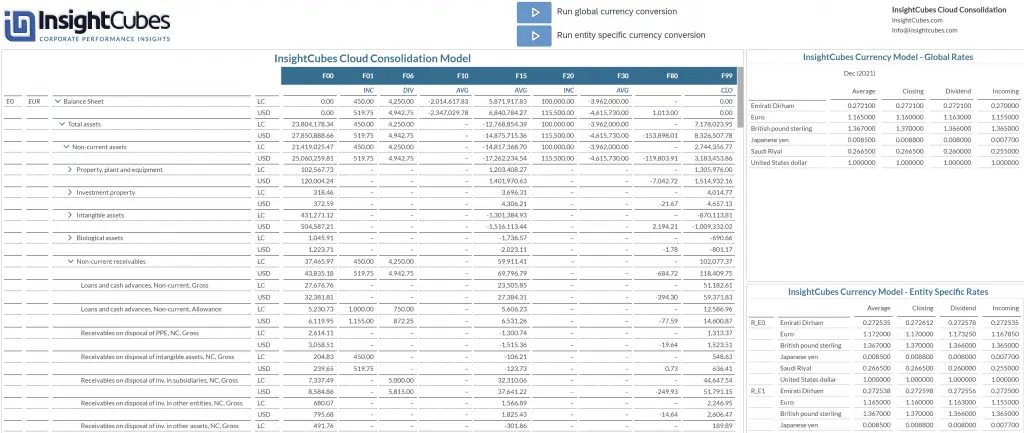
In the screenshot above, the system converted the Statement of Financial Position for Entity E0 from its local currency (EUR) into USD using global currency rates. The system also converted each flow in the columns according to the specific movement rates shown in the top-right corner. The values on F01 and F20, which both have a specific rate, were converted at the Incoming rate of 1.155 for the EUR. F00 (opening flow) was converted at LYE closing rate. F06 (which is a flow for dividends) was converted at 1.163, F99 (closing) was converted at the closing rate of 1.16 and the remaining flows with AVG were converted at 1.165.
The system automatically calculates F80, the currency translation adjustment (CTA), as explained earlier in this blog.
Going beyond the discussed currency conversion, the solution allows for currency conversion based on entity specific rates. In the previous example, the system used global rates, which apply to all companies. However, we might have instances where the conversion rate from EUR to USD is applicable to all companies except for one or more.
Each entity has a corresponding “Rate entity” in the Rates model. When you enter currency rates on rate entities and trigger Entity-Specific Currency Conversion, the system converts each entity’s trial balance using its specific rates. If an entity has no rate entity, the system applies the global rates.
Example:
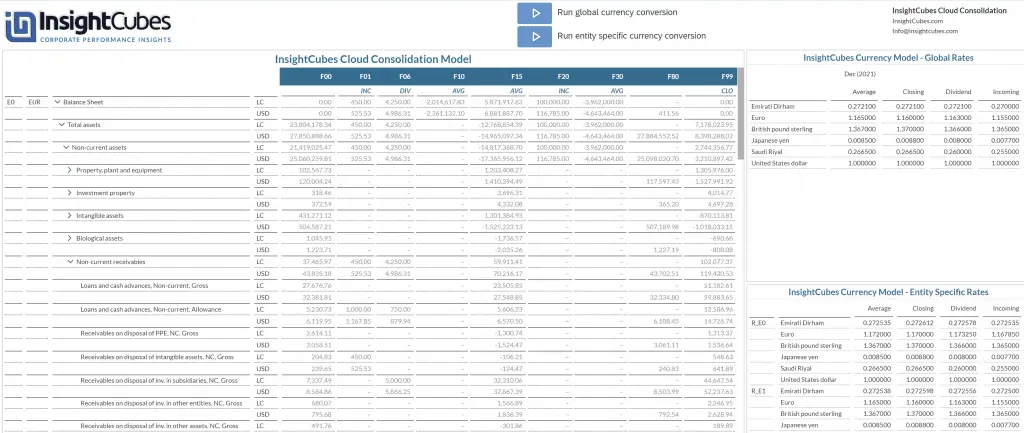
In the screenshot above, the system triggers Entity-Specific Rates. Because E0 has its Rate Entity (R_E0) populated, the system converts its financial statements using entity-specific rates. Each Flow in the columns converts according to the movement rates shown in the bottom-right corner. The system converted values for F01 and F20, which both have specific rates, using the EUR Incoming rate of 1.167850. It converted F00 (opening flow) using the prior year’s closing rate. The system converted F06 (dividends) at 1.173250, F99 (closing) at the closing rate of 1.17, and the remaining AVG flows at 1.172.
In the next blog, we will discuss the automated eliminations and adjustments done by InsightCubes Cloud Consolidation extension for SAP Analytics Cloud