
Managing Ownership Structure with the Consolidation Extension for SAP Analytics Cloud
Purpose of managing ownership structure
Managing ownership structures within the Consolidation Extension for SAP Analytics Cloud (SAC) is essential for accurate financial consolidation and reporting. The Cloud Consolidation Extension provides robust tools for managing these structures, offering various methods such as Holding, Full, Equity, and Proportionate ownership. Understanding these methods and how they impact financial outcomes is crucial for maintaining compliance and efficiency.
The Importance of Ownership Structure Management
In financial consolidation, a group’s ownership structures determine how the system treats different entities during automated eliminations. This includes deciding which entities to fully consolidate, proportionately consolidate, or account for using the equity method. Proper management of ownership structures ensures that financial reports are accurate and reflect the true financial position of the organization.
Key Features of the Cloud Consolidation Extension:
- Ownership Manager: This tool allows users to manage ownership structures efficiently, with options to define and modify ownership percentages for each entity.
- Entity Assignment to Scopes: Users can assign entities to specific scopes within a consolidation cycle, ensuring accurate representation in financial reports.
- Historical Tracking: The extension enables users to track changes in ownership structures over time, allowing for comparisons across different periods.
Best Practices for Managing Ownership Structures
- Understand Ownership Methods: Each ownership method in the Consolidation Extension for SAP Analytics Cloud has specific use cases. Understanding when to apply each method is critical for accurate consolidation.
- Regularly Review Ownership Structures: As business environments change, so too may the ownership structures. Regular reviews help ensure that the consolidation process remains aligned with the current business reality.
- Utilize Copy Features for Efficiency: The Consolidation Extension allows users to copy ownership structures across different periods, saving time and reducing the risk of errors.
How to manage Ownership Structures – step-by-step guide
Prior to running the consolidation process, you’ll need to know the process for managing ownership structure. In this blog, we will briefly describe the ownership manager interface and show you how to add new companies to scopes, and assign their ownership methods and ownership percentages.
You don’t need to perform this activity every month. If the ownership structure has not changed, you can trigger the copy data action trigger to replicate the ownership structure to any destination month and version.
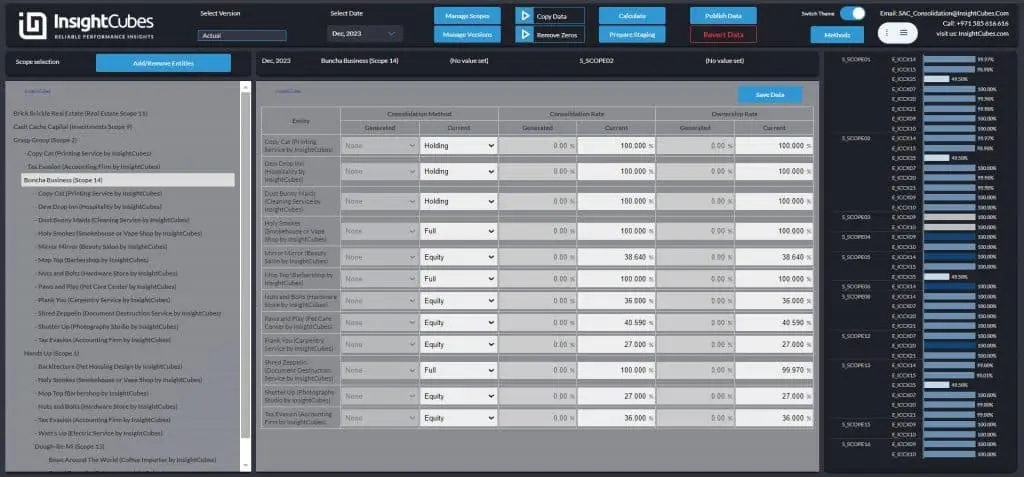
Introducing New Design and Theme Options!
Announcing a major update to all our dashboards! We’ve undergone a comprehensive design revamp, bringing a fresh, modern look to enhance your user experience.
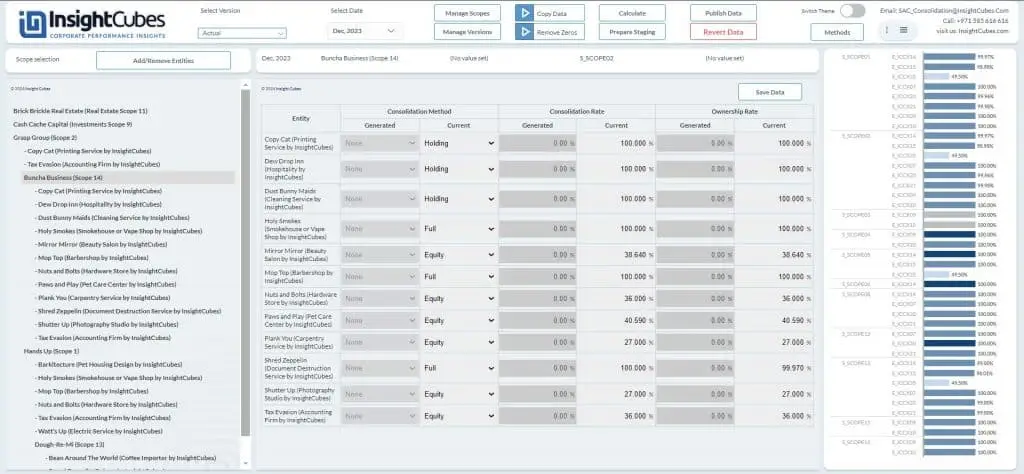
Now you can easily toggle between themes based on your visual preference or ambient lighting, ensuring optimal readability and comfort.
An Overview of Managing Ownership Structure
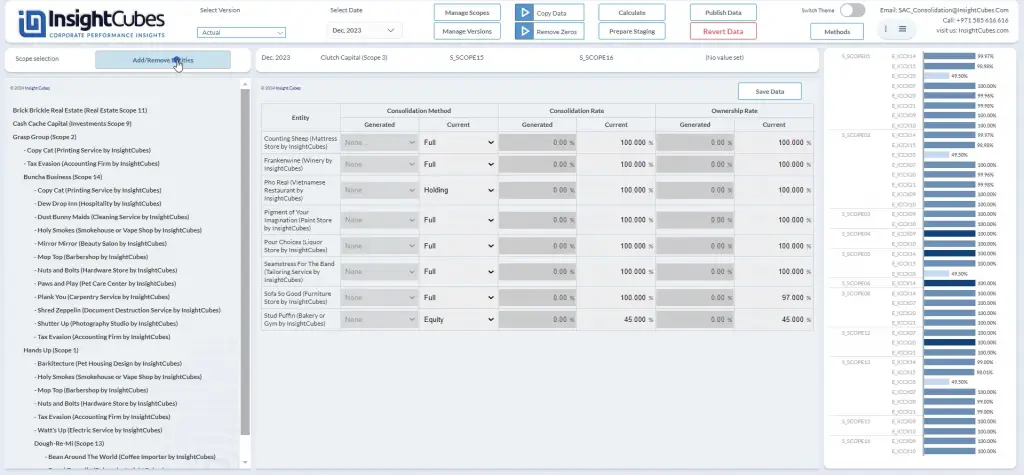
The ownership manager is an interface that shows you the scopes in a hierarchical manner, based on the PARENT_GROUP property. Note: This is not an actual hierarchy, because sub-scopes should not be arithmetically added to parent scopes. A scope can have as many sub-scopes as needed, and each scope can have as many entities as required. Within the scope, we determine which company is the holding company, and which companies are the subsidiaries and affiliates by designating the Method. So far, there are four methods, Holding, Full, Equity, and Proportionate. The system automatically handles method and percentage changes from month to month.
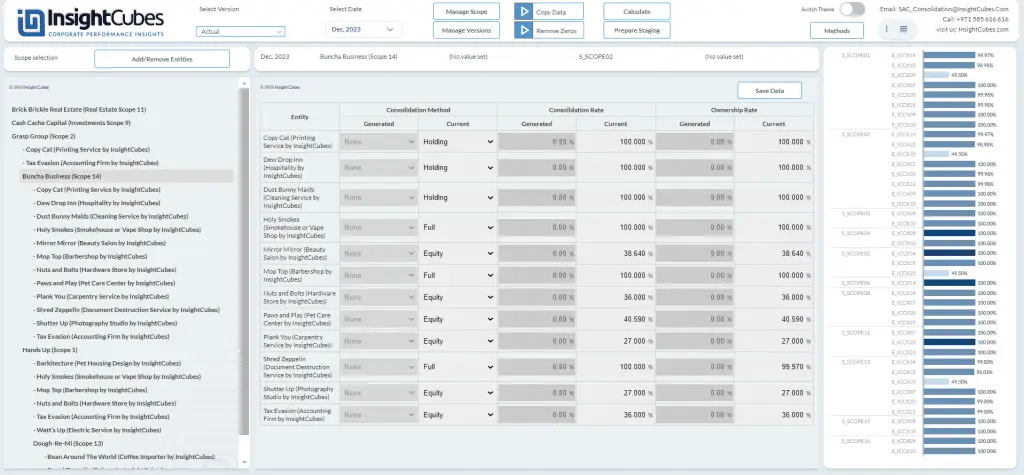
The list on the left is a custom widget that shows the scopes in a hierarchical manner, with the entities within these scopes listed inside it. When you select a scope from the left list, it will show you the directly owned companies within it. Alternatively, when you select a company from the list on the left, the system will show you every scope to which it has been added.
Managing Consolidation Scopes
By clicking on the Manage Scope button, we can create new scopes ID and Description, and assign their group currencies, and parent scope. The default behavior of consolidation is rollup. By activating staging consolidation, you can assign the entity and audit trail that will host the consolidated values of the scope, and these values will then appear in the parent scope.
This interface provides us with the options to create new scopes, edit existing scopes and delete existing scopes. When you delete a scope, the system automatically removes all associated data, whether private or public, so consider this option carefully. Alternatively, you can use the Scope Configuration Toolkit for the same purpose.
Configuring Consolidation Scopes:
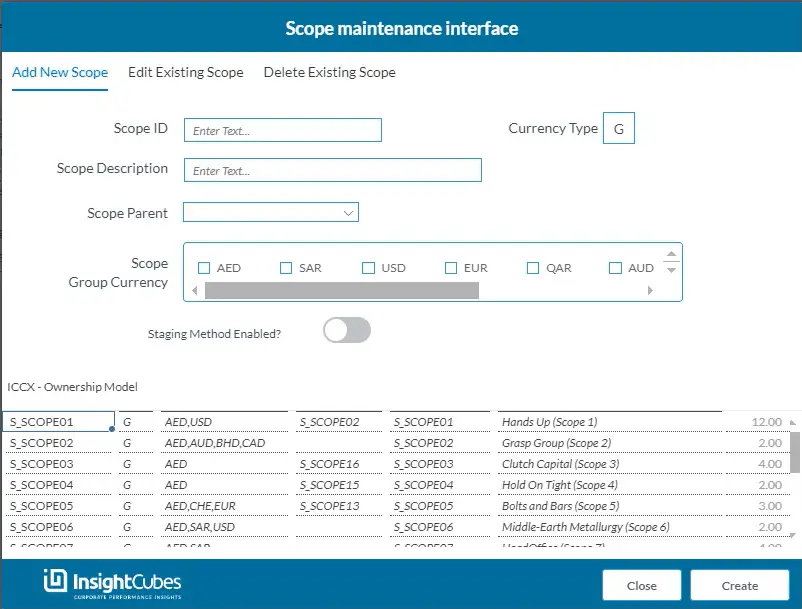
Add New Scope
This interface simplifies the creation and configuration of new scope, by the consolidation manager. By having this functionality, consolidation managers will no longer rely on any technical specialist to create and manage consolidation scopes.
You can create a new scope by entering the following criteria:
- Scope ID: Enter the scope ID (mandatory field)
- Scope Description: The full descriptive name of the scope (mandatory field)
- Scope Parent: You can assign a parent to the scope you are creating (this is optional).
- Scope Group Currency: You can assign one or more group currencies to the scope.
- Enabling Staging Method: You can activate this feature to stage the consolidated values from the child scope onto the parent scope at a specific staging entity and audit trail (optional). If you activate it, you will need to select the Staging Entity and Staging Audit Trail.
Once you complete the steps above, click ‘Create,’ and your new scope will be ready!
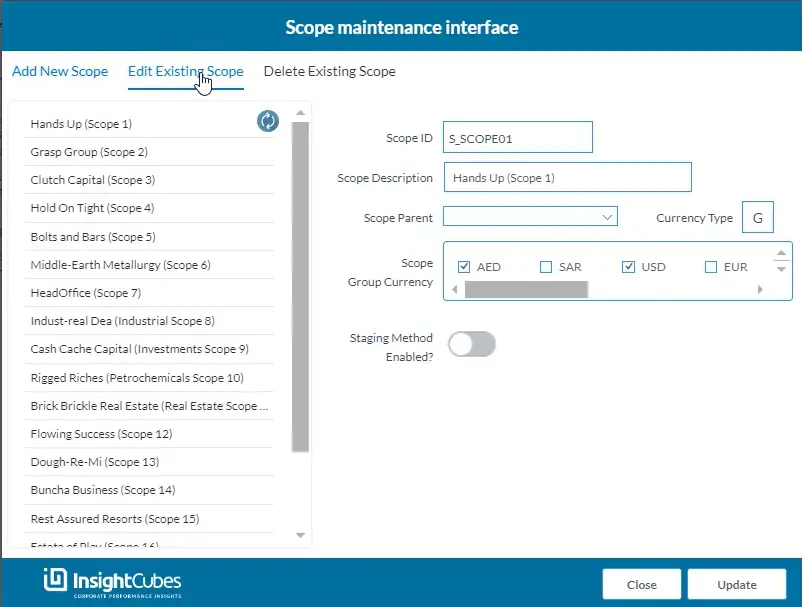
Edit Existing Scope
For created and configured scopes, adjustments can also be performed from the front end by the consolidation manager.
You can edit a scope, select it from the list of scopes in the left panel. The right panel displays the selected scope components, and the following components can be changed:
- Scope Description: Change the description of the scope
- Scope Parent: Assign a new parent scope to the selected scope
- Scope group Currencies: Assign a new set of group currencies to the selected scope (you can remove and add by clicking on the checkboxes)
- Activate or deactivate staging method
- You cannot change the Scope ID. It appears in the panel for reference only and cannot be edited.
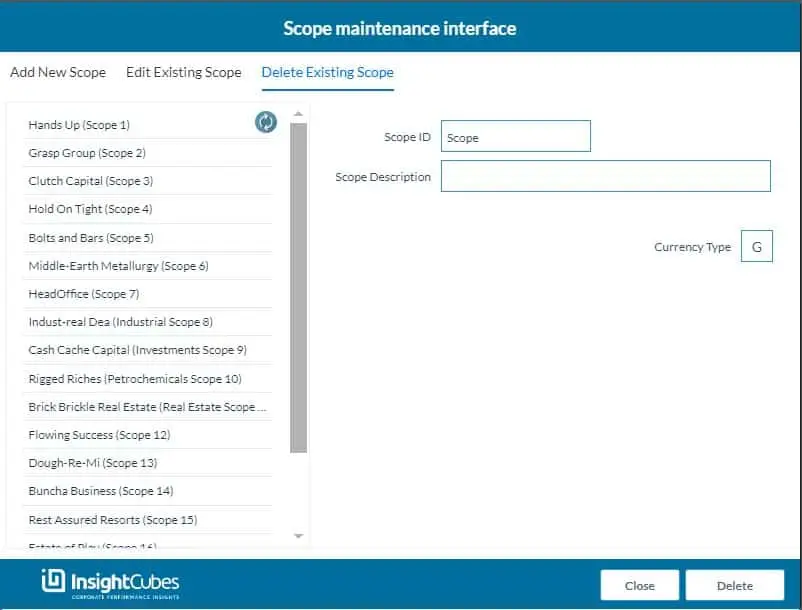
Select the scope you want to delete from the left-side list. The details of the selected scope will appear on the right side to help you make an accurate decision. The system will automatically delete all data associated with the scope, whether private or public, so consider this option carefully.
Adding Entities to Consolidation Scopes
Consider that we have created several scopes, assigned their parenting and group reporting currencies, and now want to add the entities to the scopes. We are starting with scopes with no entities assigned.
First, select the specific scope from the list. When you select a scope from the left list, the Add/Remove Entities button will appear (it will not appear if you select an individual entity). Then click on Add/Remove Entities.
From the Entity popup, select the entities to include in the designated scope using the left checkbox group, then click the right arrow to move them to the right checkbox group titled ‘Entities included in the scope: (your selected scope)’.
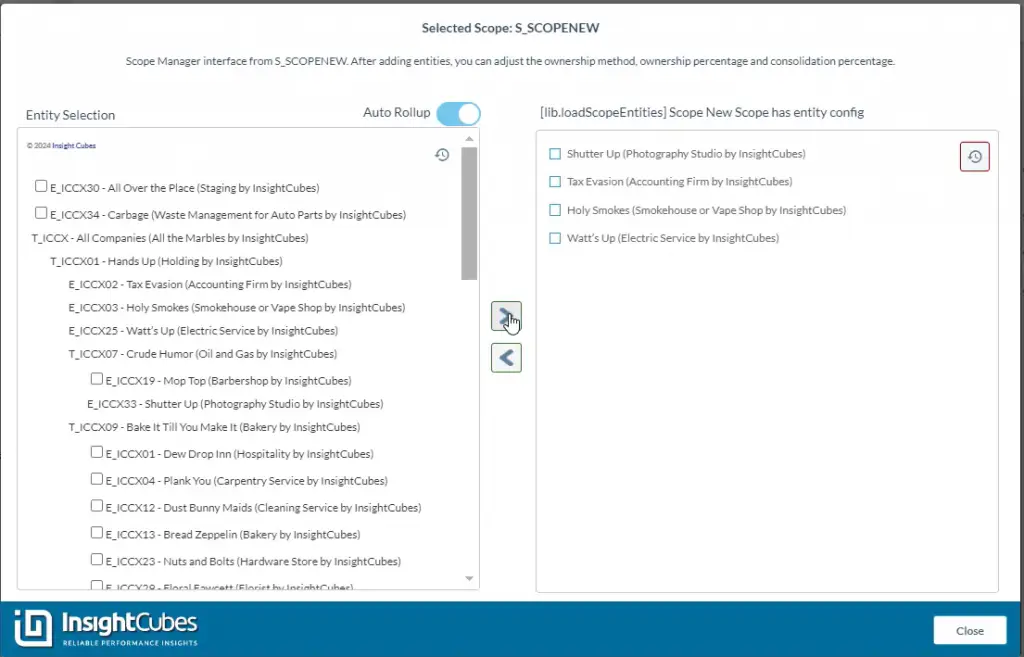
Once done, click on close to start assigning their methods of consolidation, consolidation percentages, and ownership percentages.
The entities added to the selected scope appear in the Scope Table custom widget. Assign the consolidation method from the dropdowns, whether holding, full, equity, or proportionate.
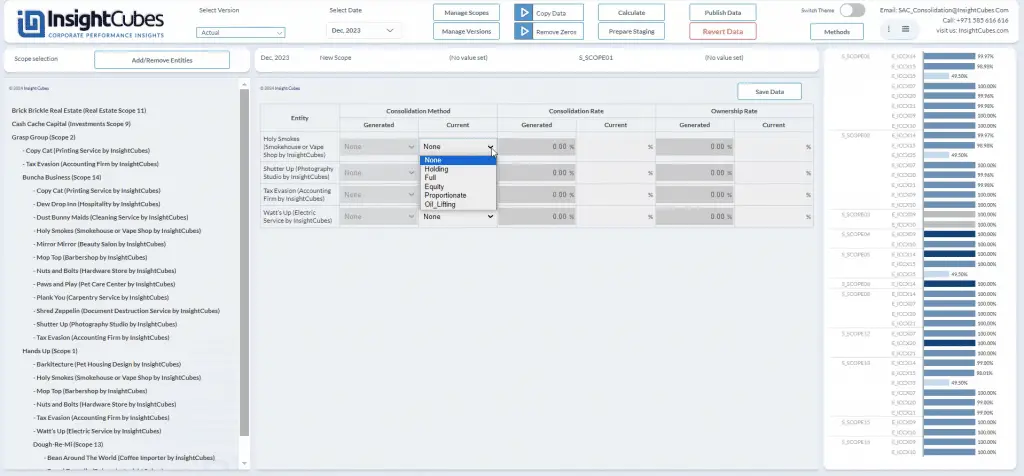
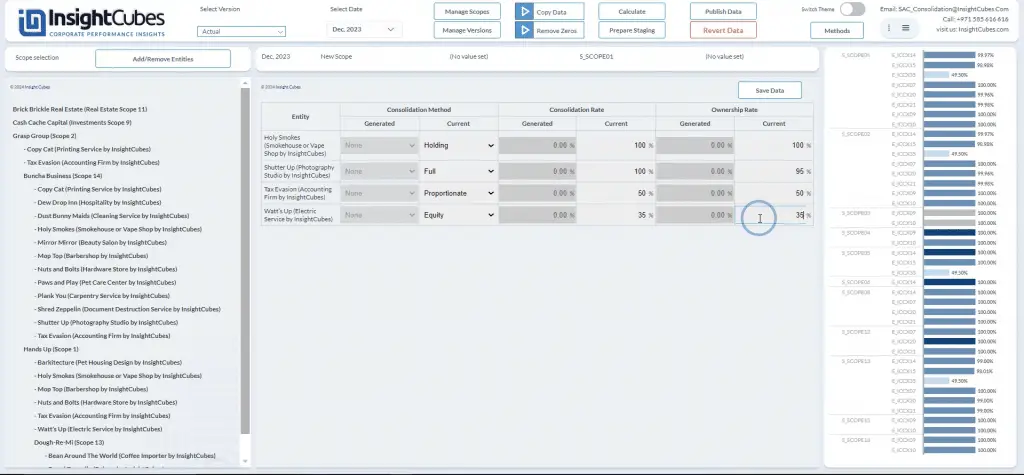
Enter the percentage of consolidation and percentage of ownership. Then Save the data by clicking on the Save Button
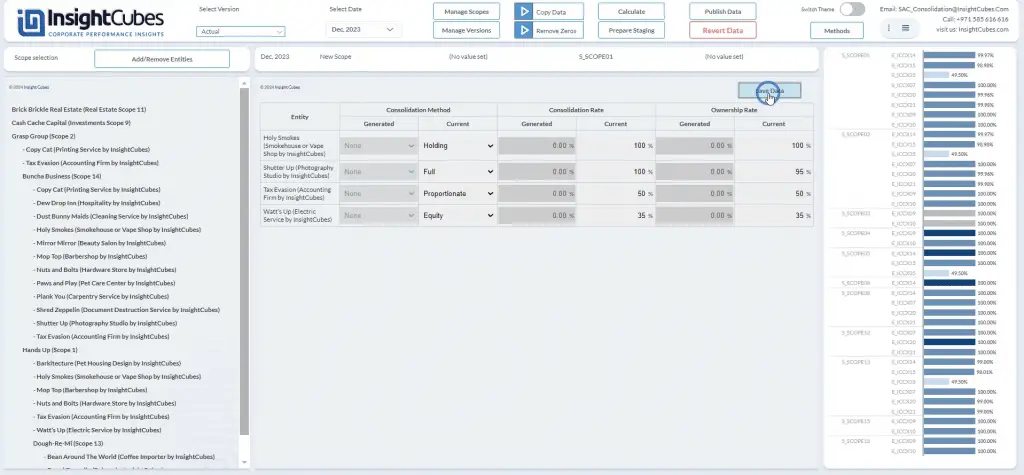
The system will register the structure, methods, and percentages to the model directly. After you have saved the data, the publish button will be visible, click on publish to publish these values to the public version.
You can conduct the same for the sub-scope, by selecting the scope from the left list, adding the entities to the scope, and assigning their methods and percentages.
As mentioned at the beginning of this blog, you can copy the ownership structure from one month or version to several others using the Copy Data action.
This analytic application also includes other functionalities and features, and the team continually enhances it. However, the steps covered are sufficient to set the ownership structure for consolidation automation.
See Also: SAP Analytics Journals
There you have it – everything you want to know about managing ownership structure with SAP Analytics Designer.