
Traditional annual budgets can’t keep up with today’s fast-moving business demands. Companies need forecasting that adapts in real time, allowing finance teams to make informed decisions as actual data arrives. Using the SAC Excel Add-in, rolling forecasts in SAP Analytics Cloud enable this agility by continuously extending the planning horizon and aligning actuals with forward-looking projections.
What Is Rolling Forecast in SAC?
A Rolling Forecast is a dynamic planning approach that:
- Combines historical Actuals with projected Forecasts.
- Automatically adjusts the forecast horizon based on the current date and business logic.
- Provides planners with a continuous timeline without manual reshaping of periods or versions.
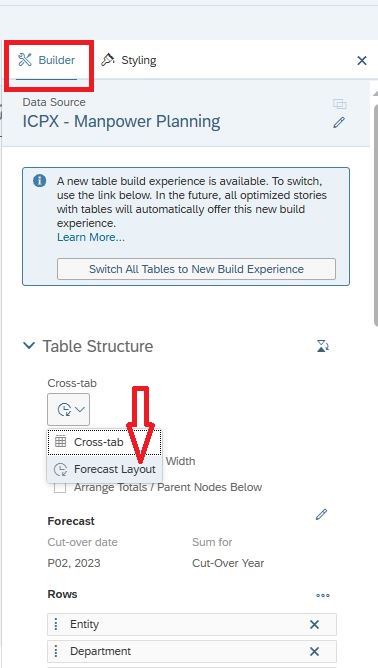
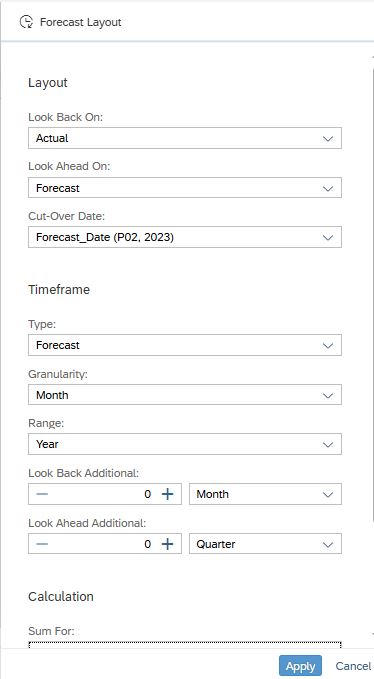
Using SAC’s forecast layout or rolling forecast tables, you can define:
- A cut-over date where actuals stop and forecasts begin.
- Look-back and look-ahead intervals (months or quarters).
- Dynamic columns that update automatically with each planning cycle.
This setup allows you to compare recent actual performance alongside updated forecasts, adjust assumptions based on incoming data, and react faster to changes in the business environment.
Benefits of Rolling Forecasts
- Increased agility: Adjust forecasts dynamically as new actuals arrive.
- Consolidation: Combine Actual and Forecast versions in a unified table.
- Improved visibility: Blend historical data with projections to identify key drivers faster.
- Reduced manual work: Dynamic tables minimize repetitive formula updates.
Technical Setup in SAC Excel Add-In
For rolling forecasts, Excel formulas allow dynamic, flexible, and automated control of forecast tables. Here’s how to set it up:
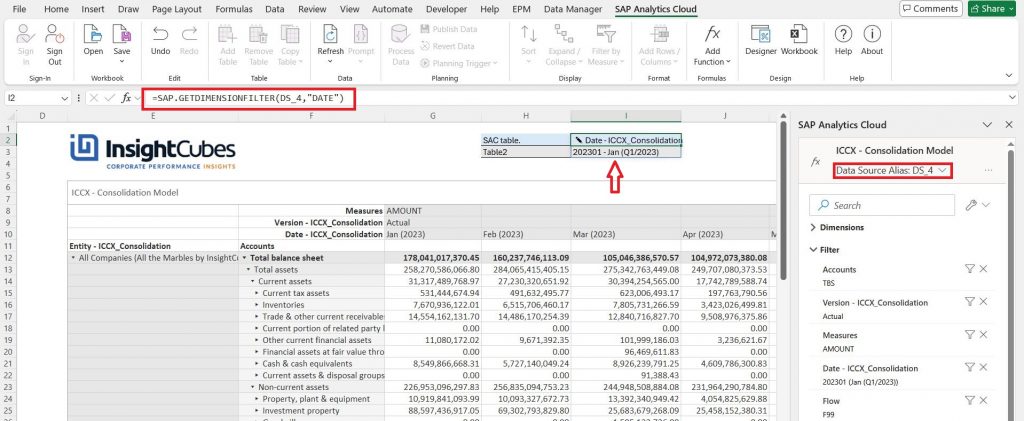
Step 1: Retrieve the Date Dimension
Use the SAP.GETDIMENSIONFILTER formula to extract the Date dimension from your data source. This enables formulas to dynamically reference dates without hardcoding values.
Example: =SAP.GETDIMENSIONFILTER(“DS_1″,”Date”)
Step 2: Assign Members to a List
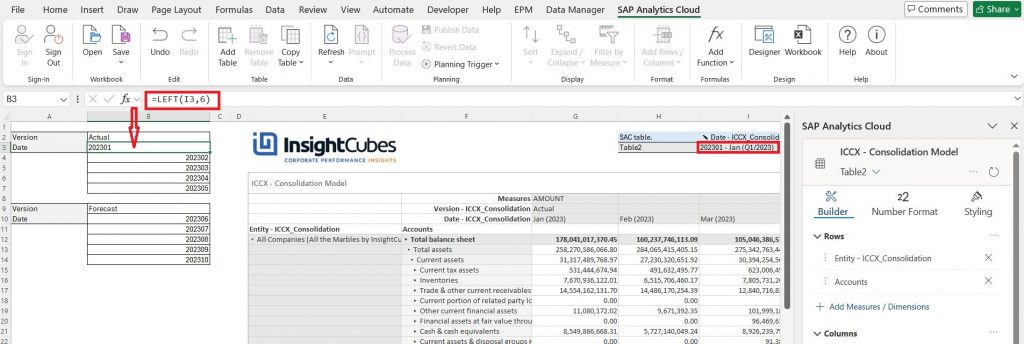
Assign the returned cells from the dimension filter to a list of required members. This allows you to control which periods are included in calculations directly in Excel.
Step 3: Create SAP.BLOCK Tables
Create two separate SAP.BLOCK tables for Actual and Forecast. Reference the member list from Step 2 so that the tables dynamically update based on the selected periods.
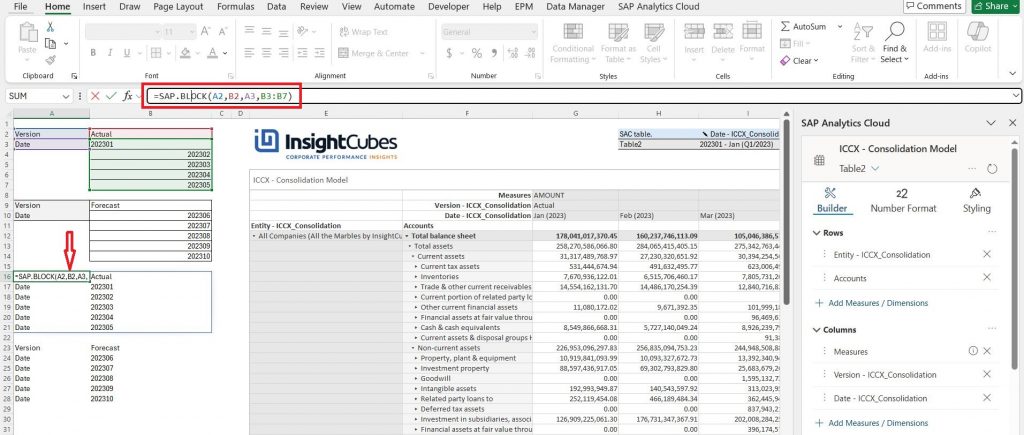
Step 4: Apply SAP.ASYMMETRICFILTER
Link the Actual and Forecast SAP.BLOCK tables to an SAP.ASYMMETRICFILTER formula. Connect this filter to the main table to allow independent evaluation of Actual and Forecast versions while maintaining a unified, consolidated dataset.
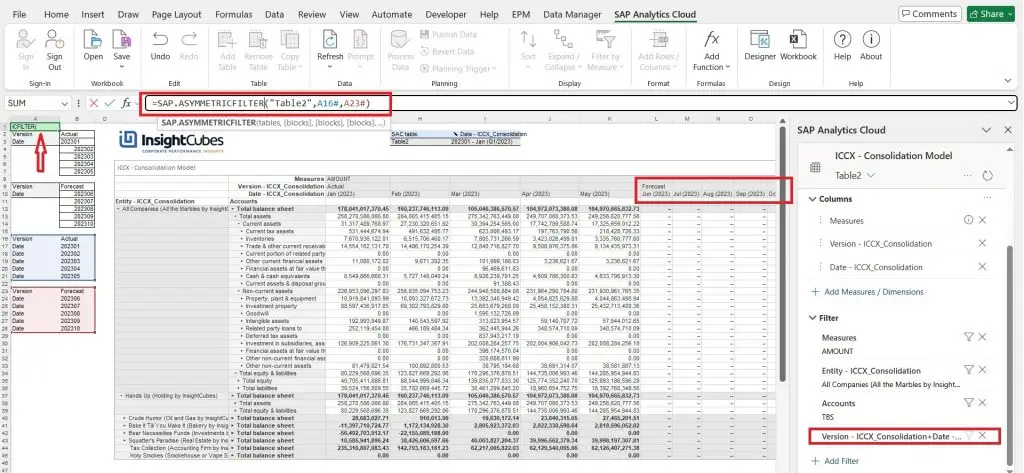
This approach supports advanced filtering and calculation logic directly within SAC models or the Excel add-in, without manual updates for each period or version.
Why It Matters
- Makes forecast tables more responsive to changing data.
- Supports dynamic filtering and calculation logic for multiple versions.
- Reduces manual maintenance of large, dynamic planning tables.
Practical Tips
- Keep time dimensions and versions consistent across models.
- Use named ranges in Excel for easier formula management.
- Always validate SAP.BLOCK tables before linking them to asymmetric filters.
- Consider dynamic cut-over dates to keep rolling forecasts aligned with actuals.
Rolling forecasts combined with Excel formulas give finance teams powerful, flexible tools for continuous planning. By linking dimension filters, dynamic blocks, and asymmetric filters, organizations can maintain up-to-date forecast tables, reduce manual effort, and support forward-looking decision-making in a single, unified workflow.