
Show and hide report filtering widgets on tabstrip according to tab selection with SAP Analytics Designer
In a previous blog we mentioned special filtering requirements. We had to filter the flow as a property of the dimension only on balance sheet related tabs. And the Intercompany dropdown filter only on intercompany related tabs.
This blog explains how we hide and show certain widgets in SAP Analytics Designer to meet reporting needs.
When you detail your analytics application dashboard with all filters, tables, and charts, you can control which widgets appear or hide on tabstrip selection based on the reports’ criteria and specs.
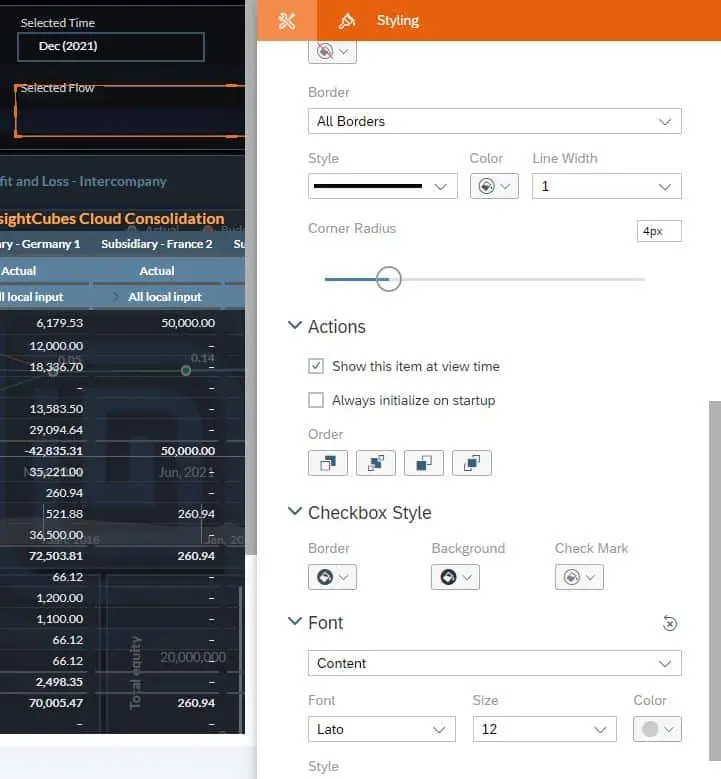
Show/hide this item on run time
If a widget must appear on the default tab (the first tab in the tabstrip), check “Show this item at run time” in the widget’s Styling Designer. To hide it on the default tab, uncheck “Show this item at run time.”
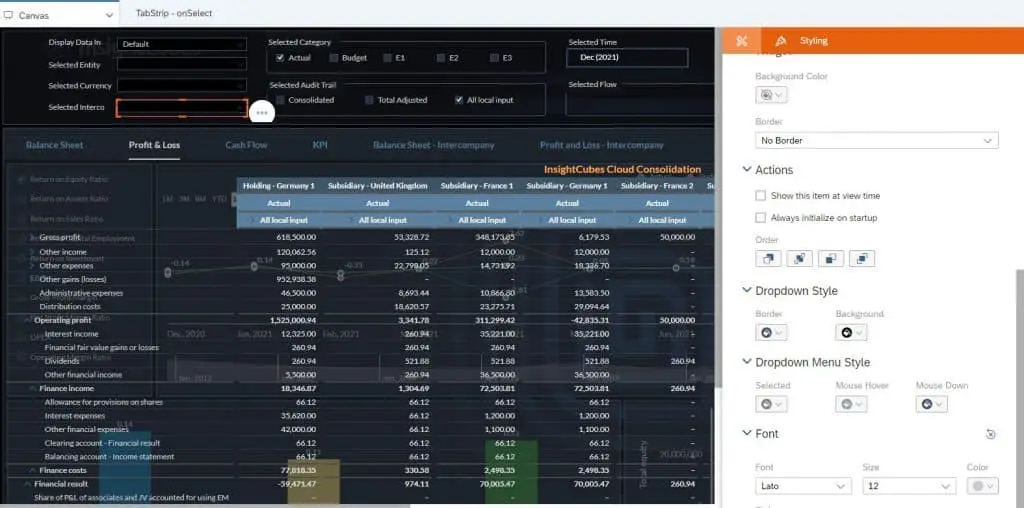
TabStrip on select fx
In the code snippet below, we hide the Intercompany dropdown (lines 3-4) and the Flow checkbox group (lines 17-18), along with their titles, by default because they should appear only on specific tabs. Then, we use an if statement to specify the tabs where they should appear and set their visibility to true.
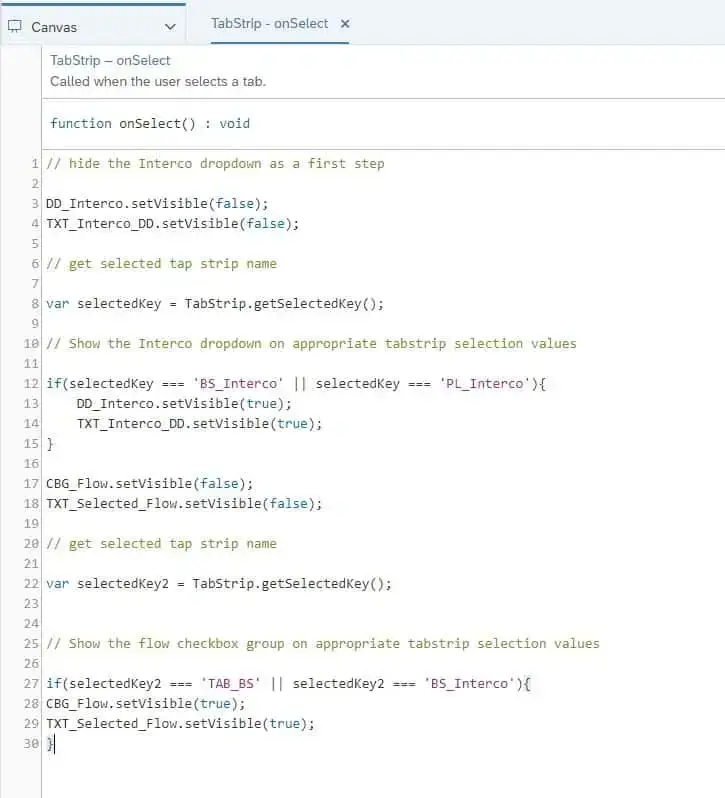
Setting widgets visibility on the tabstrip using Script in SAP Analytics Designer is a very handy tool to apply report specifications allowing the analytics application to be a flexible reporting dashboard.