
How to use the getPlanning() API and its methods and functions with SAP Analytics Designer
The getPlanning() API returns the Planning object of the table. If the table links to a model (data source) that does not support planning, it returns undefined.
This blog provides an overview of all functions used with the getPlanning() API, along with some use cases. The getPlanning() API includes nine functions, which are:
1. getDataLocking()
The data-locking object of the table is returned. Used to check if a model is data-locking enabled. This check is required for operations like setState() and getState() when the model does not have data locking enabled. If the table links to a model (data source) that doesn’t support data locking, the API returns undefined. There are no mandatory no optional parameters.
2. getPrivateVersion()
The private version associated with the data source is returned. This data isn’t visible to other users and other solutions of SAP Analytics Cloud. If the version ID has no private version, the API returns undefined. The versionID parameter is mandatory.
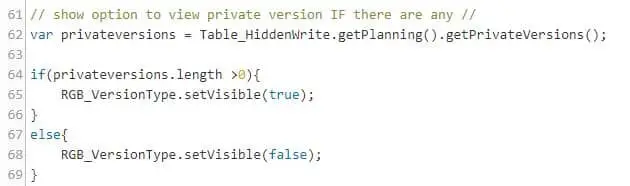
3. getPrivateVersions()
All private versions associated with the data source are returned. This data isn’t visible to other users and other solutions of SAP Analytics Cloud. Since it is returning all the private versions of the data source, there are no mandatory no optional parameters.
Example:
4. getPublicVersion()
returns the public version associated with the data source. This data is visible to all users and all solutions of SAP Analytics Cloud. The API returns undefined if the version ID has no private version. The versionID parameter is mandatory.
Example:

5. getPublicVersions()
returns all public versions associated with the data source. This data is visible to all users and all solutions of SAP Analytics Cloud. Since it is returning all the public version of the data source, there are no mandatory no optional parameters.
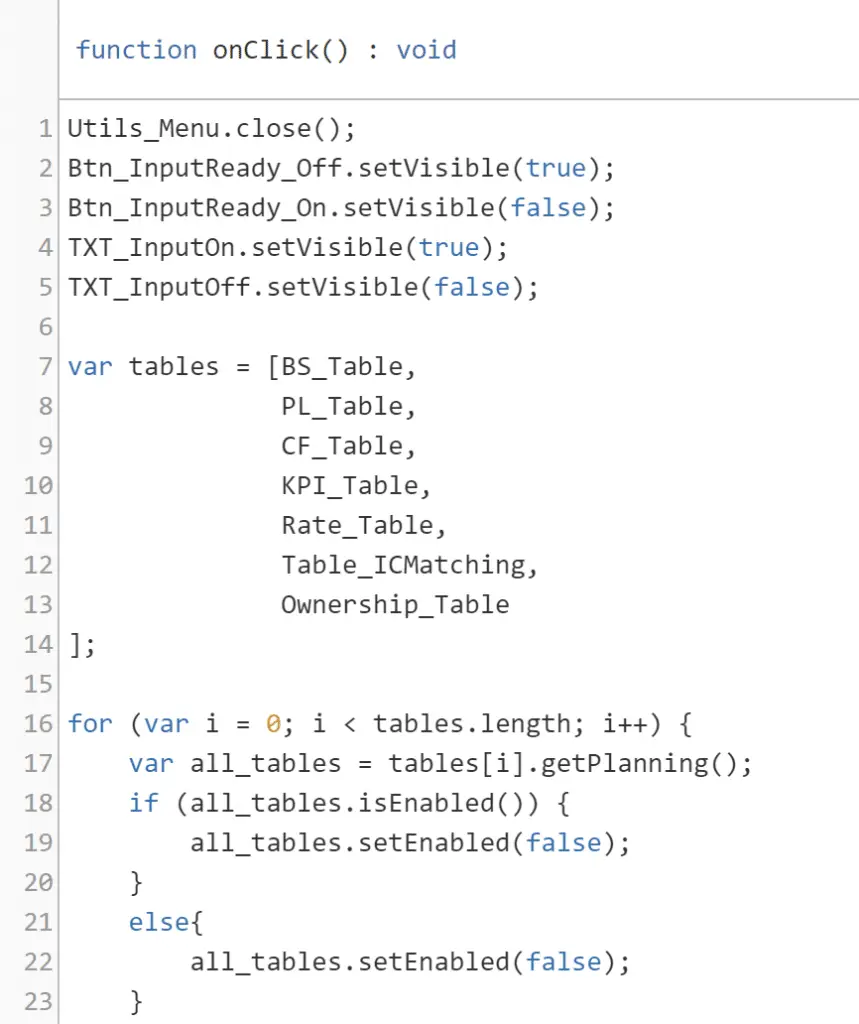
6. isEnabled()
checks whether planning is enabled for the table. Valuable script allows checking whether the data model is planning-enabled.
Example:
7. setEnabled()
Enables or disables planning for the table depending on whether you need planning or not.
Example:

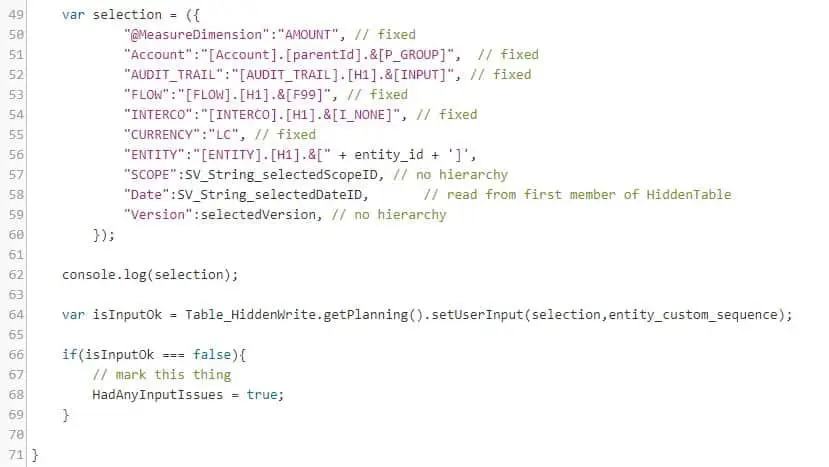
8. setUserInput()
The user can set values to cells of a planning-enabled table using an analytics designer script. After setting one or more specific cell values the user can refresh the Table by submitting the values. If the passed value starts with an asterisk (*), the API applies it as a factor to the current cell value. The selectedData (a selection consisting of property-value pairs specifying a row, column, or data cell) and value are mandatory parameters.
Example:
9. submitData()
submits data to the server. After setting one or more specific cell values the user can refresh the Table by submitting the values. The API returns true if the operation succeeds and false if it fails. There are no mandatory no optional parameters.
Example:

There you have it – now you know how to use the getPlanning() API and its methods and functions with SAP Analytics Designer.