
How to use the getHierarchies() and setHierarchy() APIs with SAP Analytics Designer
In this blog post, we will give a comprehensive example of using the getHierarchies() and setHierarchy() APIs with SAP Analytics Designer.
The getHierarchies() API is used to return the description and ID of all hierarchies of the dimension. While the setHierarchy() is used to set the hierarchy on the dimension.
In this example we will be using the cascading filter process; as in filtering on dimensions and then filtering according to hierarchies to choose how to display the data.
We will add two Dropdown Lists, one for filtering Dimension and the other for filtering Hierarchies, and depending on what Dimension we choose to filter on, the Dropdown List for the Hierarchies filters will change.
There is always one consistent filter for Hierarchies which is Flat Presentation and according to our chosen Dimension, we might either only have that one or have more options.
For example, if we are filtering on Account, we have two choices for Hierarchies; Flat Presentation and hierarchical. When you select Flat Presentation, the system lists only the selected member, without any descendants. In Hierarchical Presentation, if the member is a parent, the system also lists its descendants.
Users can choose different filters by simply selecting them from the dropdown lists we added.
Setting Up the Table Widget and Dropdowns
First, add a table widget to your analytics application. From the builder panel, add the account dimension to the Rows, and the Version dimension to the Columns. Filter the account and version dimensions to balance sheet, and actual respectively. Note this analytics application example is using a planning-enabled model. Hence, the table widget is planning enabled.
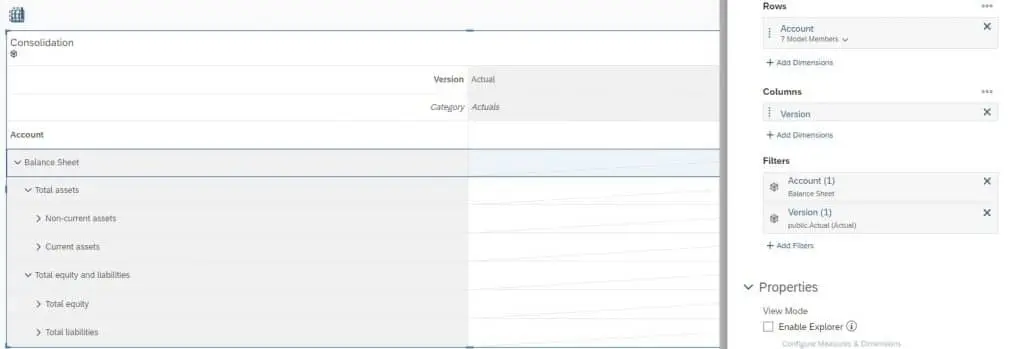
Now add two drop-downs, the first for the dimensions, and the second for the hierarchy.

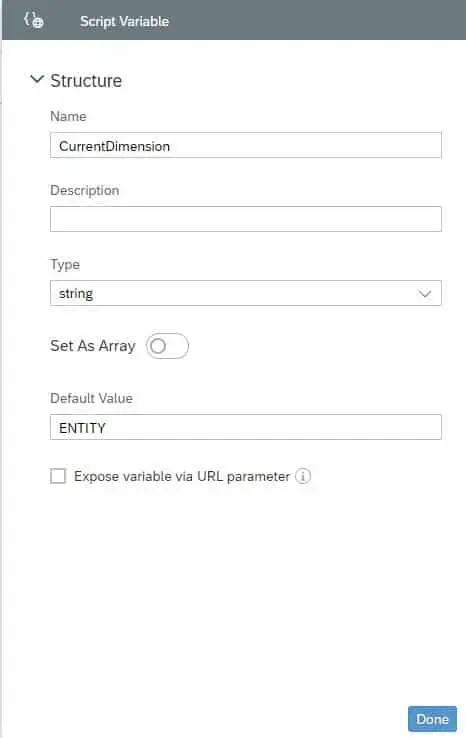
Create a Script Variable, call it currentDimension, Type string, and the Default Value Entity.
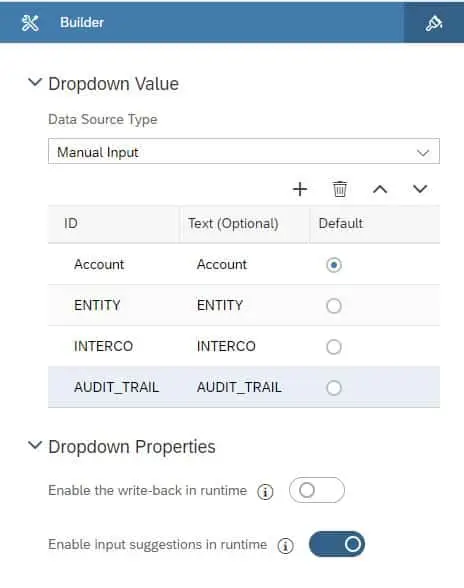
Fill the Dimension dropdown through the builder as follows:
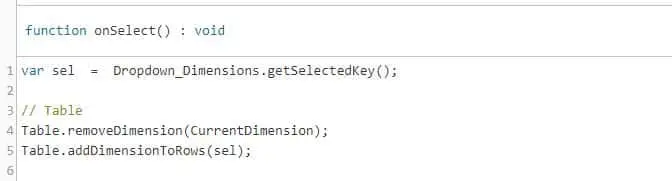
And add the following code to the Dimension dropdown’s onSelect fx
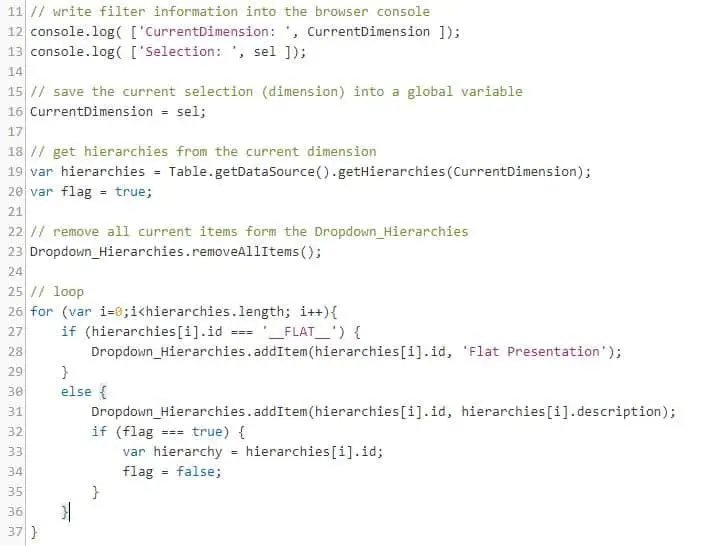
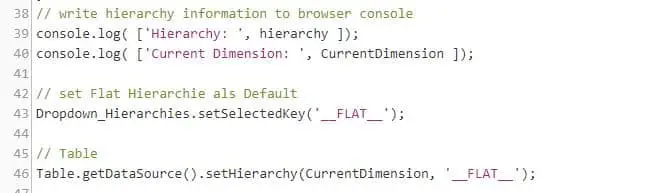
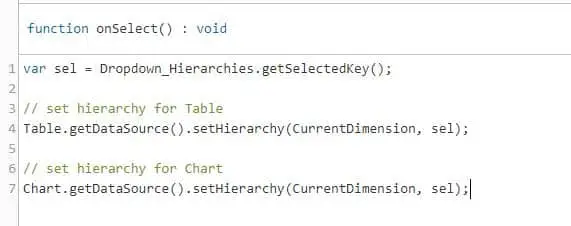
Add the following code to the Hierarchy dropdown’s onSelect fx:
Then add all the on Initialize code
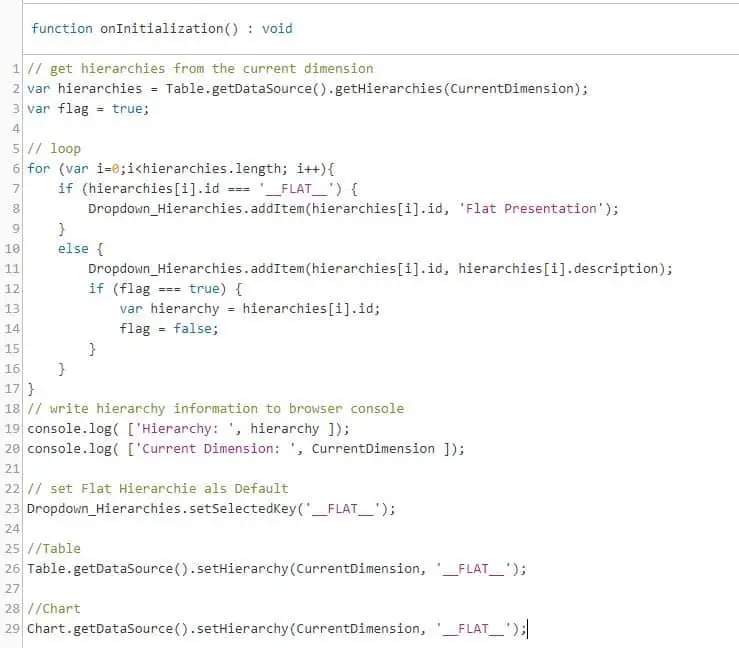
There you have it – you are now able to properly use the getHierarchies() API with SAP Analytics Designer.