How to use the getMembers() API with SAP Analytics Designer.
getMembers() method returns a set of members from a specified dimension. This method conducts “a round house trip to the backend”, which is a heavier process than the getResultSet(). In this blog, we use getMembers() with a condition (e.g., an if statement) to filter members in more detail.
Getting Members from a Widget (Table or Chart)
There are several ways of getting members with SAP Analytics Designer but in the below blog we will be getting members from a table/chart, and a planning model using conditions. getDataSource().getMembers() exposes the description, dimension Id, display Id, Id, and model Id, allowing you to set conditions to filter the exposed member information, as shown in the below screenshot.
When you use the getMembers() method from a widget (table or chart) you will be able to get description, dimension Id, display Id, Id, model Id and set conditions to filter the members that we would like to get in the list as shown in the below screenshot.
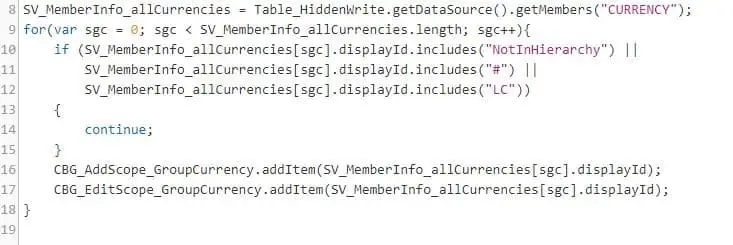
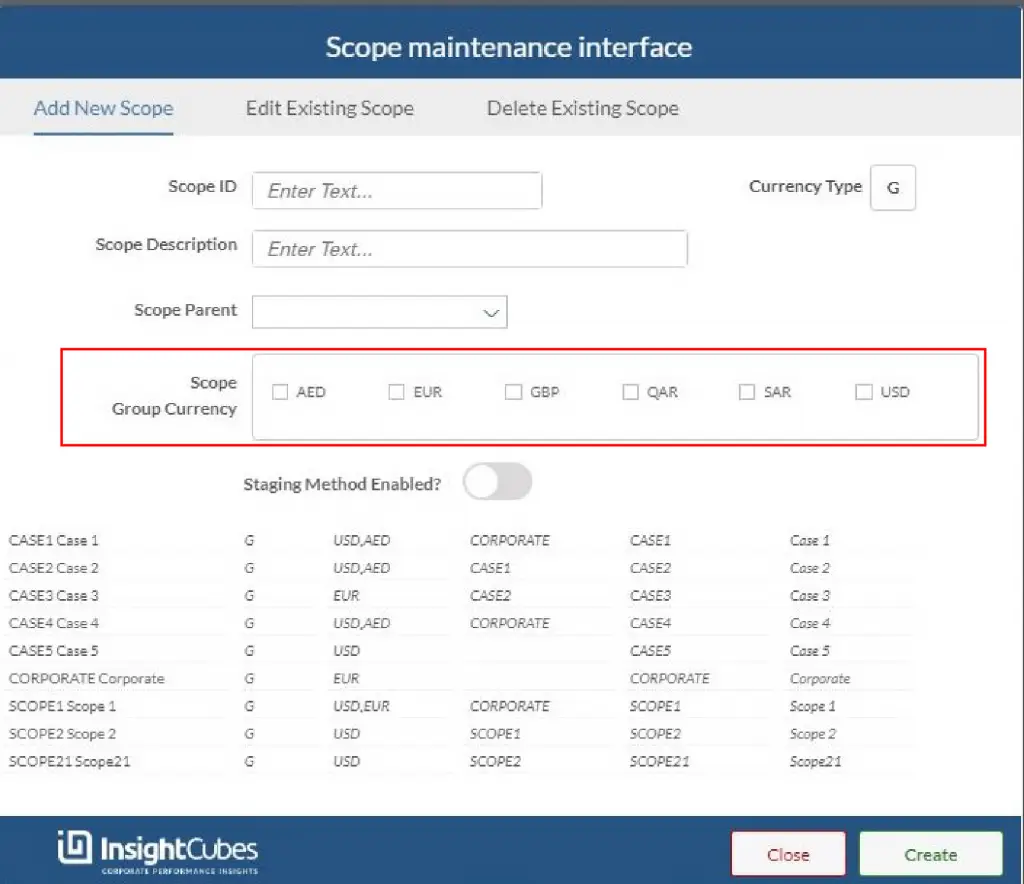
The selected members will be added to two check box groups called CBG_AddScope_GroupCurrency and CBG_EditScope_GroupCurrency, using a Global Script Variable called SV_MemberInfo_allCurrencies, and only their displayIDs will be shown in a Checkbox group. They have been populated with the list of currencies excluding NotInHierarchy, # and LC. Allowing the user to select multiple currencies to add them as an attribute to the scope as discussed in the How To Create, Update And Delete Members With SAP Analytics Designer blog.
Refining Results with Options
You can also use options in the getMembers() after mentioning the target dimension to refine the result. In the below examples you will see how we can use getMembers() options to refine our results.
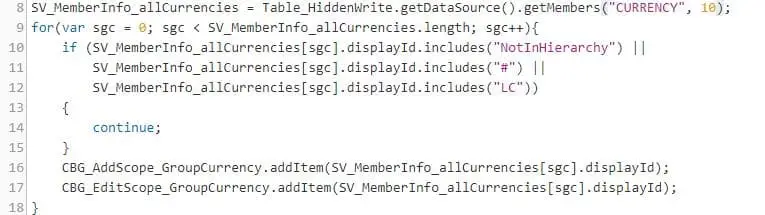
Using accessMode: MemberAccessMode lets you retrieve members with either ‘Booked Values’ or ‘MasterData’, as shown below. This also reduces the list of members before subsequent code processes them.
We can format the result list using toExponential, toFixed, toPrecision, or toString before further processing.”
By default, the member limit is 200 and MasterData is the access mode.
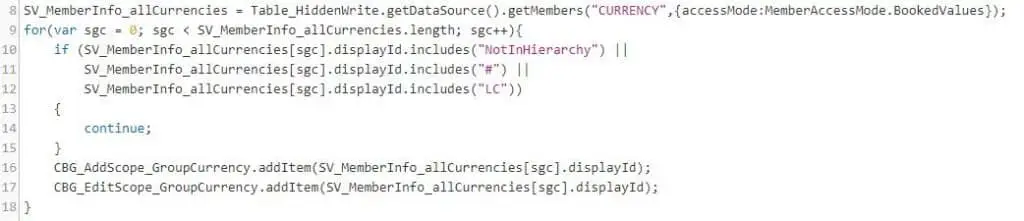
Getting Members from a Planning Model
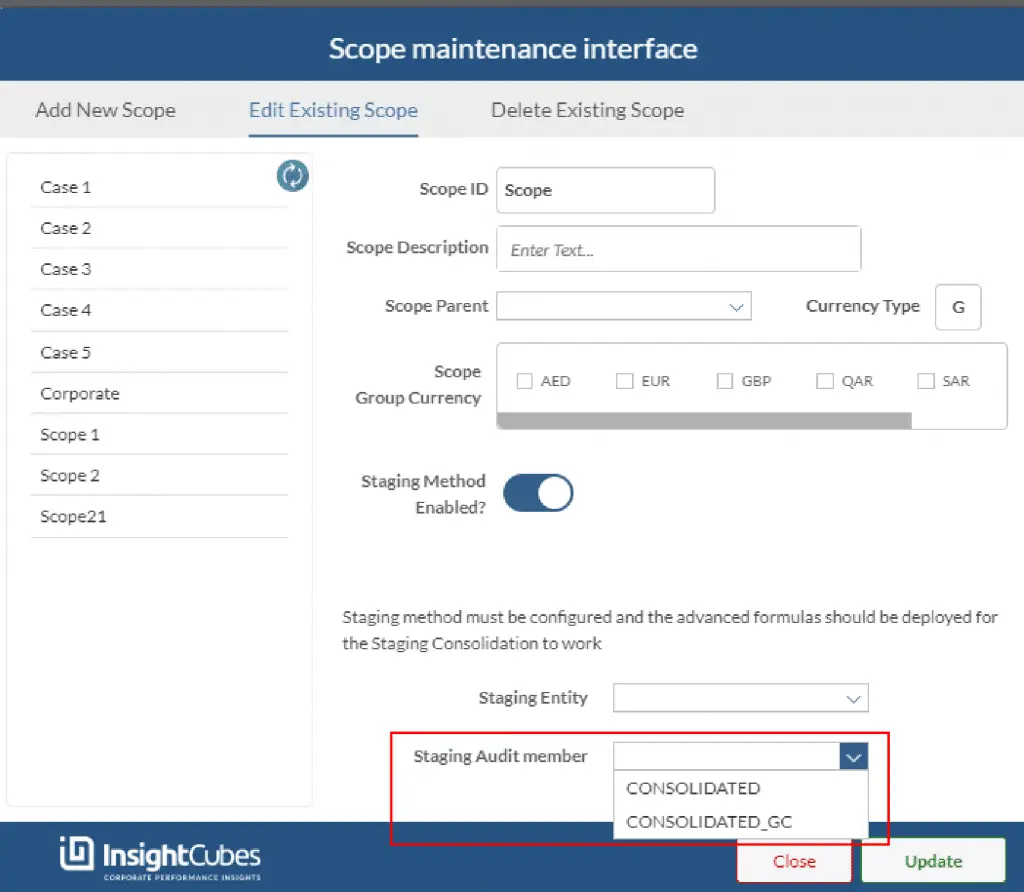
Another approach to using getMembers() method is from a planning model instead of a widget, and without the preceding getDataSource(). This method directly exposes member descriptions, IDs, properties, and other criteria, allowing us to refine the selection further. In the below example we will be getting all of the members from the Audit Trail dimension (default limit 200), and then further refining our list of members by using a criteria based on the property of the dimension.
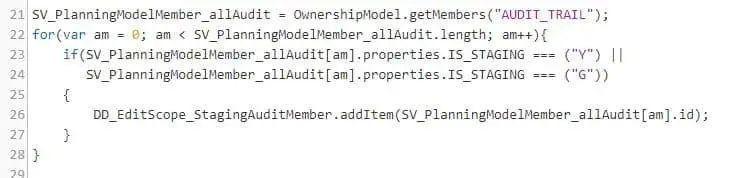
To proceed with the above, first add a planning model to the SAP Analytic Designer. (In our case, we called the Planning Model OwnershipModel). The above code will allow us to get only Members that have a property values “Y” or “G” under Property IS_STAGING. The system adds these specific member IDs to the global script variable SV_PlanningModelMember_allAudit, which compiles and populates them in the DD_EditScope_StagingAuditMember dropdown.